
Quick Start
Get started with your first WarpBuild workflow
WarpBuild provides blazing fast GitHub runners for your workflows. You can set it up in two ways:
- With your AI agent. Your agent (Claude Code, Cursor, VS Code or another MCP client) installs the WarpBuild GitHub app, switches your workflows to WarpBuild runners and opens a pull request for you to review.
- Without an AI agent. You install the GitHub app and change
runs-onin your workflows yourself.
Both end the same way, with your jobs running on WarpBuild runners. Pick the one you prefer.
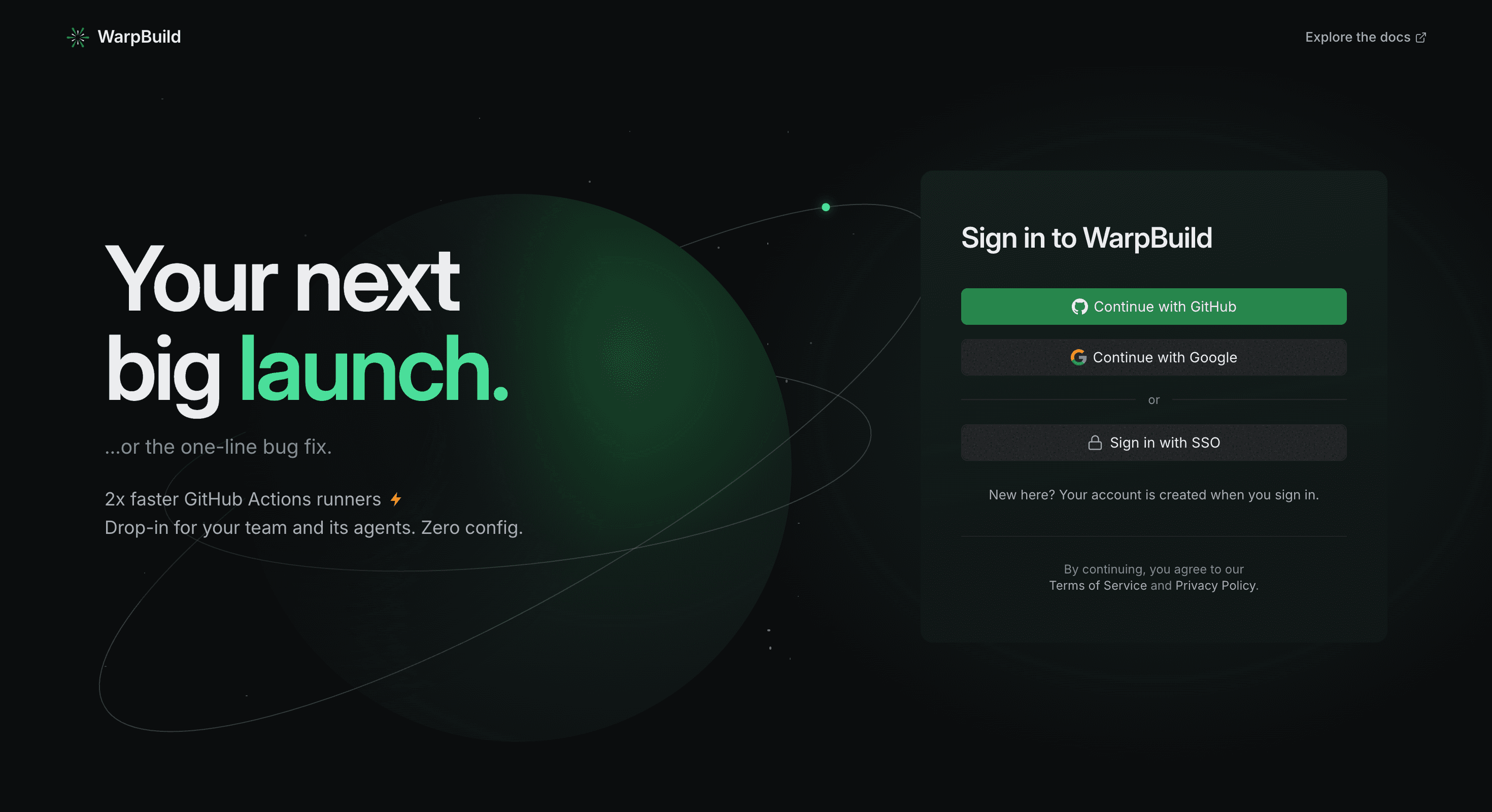
Sign up for a WarpBuild account
Sign up for a WarpBuild account at https://app.warpbuild.com/. The Overview page then shows a Get started card with both ways to set up.
GitHub Enterprise Cloud with data residency (
*.ghe.com) or GitHub Enterprise Server: the github.com app cannot be installed on your enterprise. Follow GitHub Enterprise instead.
Set up WarpBuild
Connect WarpBuild to your agent
Add the WarpBuild MCP server to your agent. You can also copy this from the Get started card.
-
Claude Code: run this in your terminal.
claude mcp add --transport http --scope user warpbuild https://mcp.warpbuild.com/mcp && claude mcp login warpbuild -
Cursor: add this to
.cursor/mcp.jsonin your project, or to~/.cursor/mcp.jsonfor all projects.{ "mcpServers": { "warpbuild": { "url": "https://mcp.warpbuild.com/mcp" } } } -
VS Code: run this in your terminal.
code --add-mcp "{\"name\":\"warpbuild\",\"type\":\"http\",\"url\":\"https://mcp.warpbuild.com/mcp\"}" -
Other agents: add
https://mcp.warpbuild.com/mcpas a remote MCP server that uses HTTP.
Your browser opens to sign in to WarpBuild. Click Allow. You do not need an API key. The agent shows up under Settings → API keys → Connected apps, and the Get started card says it is connected.
Paste the setup prompt in your repository
Open your agent in the repository you want to switch, and paste this prompt. The same prompt is in the Get started card under Copy prompt.
Use the WarpBuild MCP server to set up WarpBuild. Follow its setup steps:
1. Find the repository. If you are not in one, list my recent repositories and ask me which one to set up.
2. Pick the GitHub organization. Ask me to confirm it.
3. Install the WarpBuild GitHub app. If WarpBuild has to review my workspace, open the page where I send the details for it. If WarpBuild needs a payment method, open the billing page for me.
4. Switch the workflows. Use WarpBuild runners, change only runs-on, and open one pull request named "Switch CI to WarpBuild runners". If the repository is public, ask me before allowing WarpBuild runners in public repositories. Do not merge it. Then tell me when the first job will run. Don't wait for it.
5. Send a setup report. When you finish, or if setup stops early, send WarpBuild your setup report with send_setup_report. Don't ask me anything for it.
The agent asks you to confirm the GitHub organization and opens GitHub so you can install the app.
Review the pull request
The agent changes only runs-on in your workflows and opens a pull request named Switch CI to WarpBuild runners. WarpBuild never writes to your code, and the agent does not merge the pull request. The checks on the pull request are your first jobs on WarpBuild runners. Merge it when you are happy with the result.
The Get started card shows the agent's progress under Agent setup progress.
To setup and use WarpBuild managed runners in your own cloud infrastructure, refer to the BYOC Setup Guide.
Troubleshooting
The app cannot be installed on my GitHub account
WarpBuild needs a GitHub organization. It cannot be installed on a personal account. Pick an organization instead, or create one.
GitHub says the organization is already connected
A GitHub organization can be connected to only one WarpBuild workspace. Use the workspace it is connected to, or disconnect the organization there first.
The install is waiting for approval
If you are not an owner of the organization, GitHub sends the install to an owner for approval. Ask an owner to approve it. If you use the agent, tell it once the install is approved and it continues.
WarpBuild is reviewing my workspace
WarpBuild reviews some new workspaces before it runs any jobs. Send the details on the review page that opens. If you use the agent, it stops here. Paste the setup prompt again once the review is done.
My jobs don't start
- The first job can take a few minutes to start.
- Check that the WarpBuild app has access to the repository. In GitHub, open your organization's Settings → GitHub Apps, click Configure next to WarpBuild, and check the repository list.
- For a public repository, GitHub blocks self-hosted runners such as WarpBuild until you allow them. See public repositories.
For more checks, see Common Issues.
Go Warp ⚡️
Elevate your engineering efficiency to the next level - start using faster GitHub actions runners for your workflows and gain insights into your CI/CD. If you have any questions, reach out to us at [email protected].
Last updated on