
GitHub Enterprise
Register a WarpBuild GitHub App on your GitHub Enterprise, install it on your organizations and run jobs on WarpBuild runners.
Enterprise plan
GitHub Enterprise support is available only on the Enterprise plan. Schedule a call to get set up.
WarpBuild supports GitHub Enterprise in both forms:
- GitHub Enterprise Cloud with data residency, where your enterprise lives at
https://<subdomain>.ghe.com. - GitHub Enterprise Server, self-hosted at your own domain, for example
https://github.acme.com.
The WarpBuild GitHub App from github.com cannot be installed on either, so you register a GitHub App on your enterprise once and connect it to WarpBuild. Every organization in the enterprise then installs that one App. For organizations on github.com, including GitHub Enterprise Cloud without data residency, use the default flow in Quick Start.
Before you start
- Sign in to WarpBuild with Google or SSO. Accounts on your enterprise do not exist on github.com, so "Continue with GitHub" on the WarpBuild login page does not work for them. Set up SSO or use a Google account from your company domain.
- Be an enterprise owner. Registering an App on the enterprise requires enterprise owner rights. Installing it on an organization requires organization owner rights.
- Know your enterprise slug and host. The slug is the path segment in
https://<host>/enterprises/<slug>. On ghe.com the host is<subdomain>.ghe.comand usually equals the slug. On GitHub Enterprise Server the host is your instance's domain. - Allow actions from github.com in your enterprise policies (Enterprise settings → Policies → Actions). WarpBuild actions such as
WarpBuilds/cacheandWarpBuilds/checkoutare published on github.com. - Make sure WarpBuild can reach your enterprise. A GitHub Enterprise Server instance must accept inbound traffic from the WarpBuild control plane egress IPs. If your enterprise uses a GitHub IP allow list, add the same IPs.
Set up
Open the setup dialog
In the WarpBuild dashboard, go to Settings → GitHub and click Set up for GitHub Enterprise.
Enter your enterprise
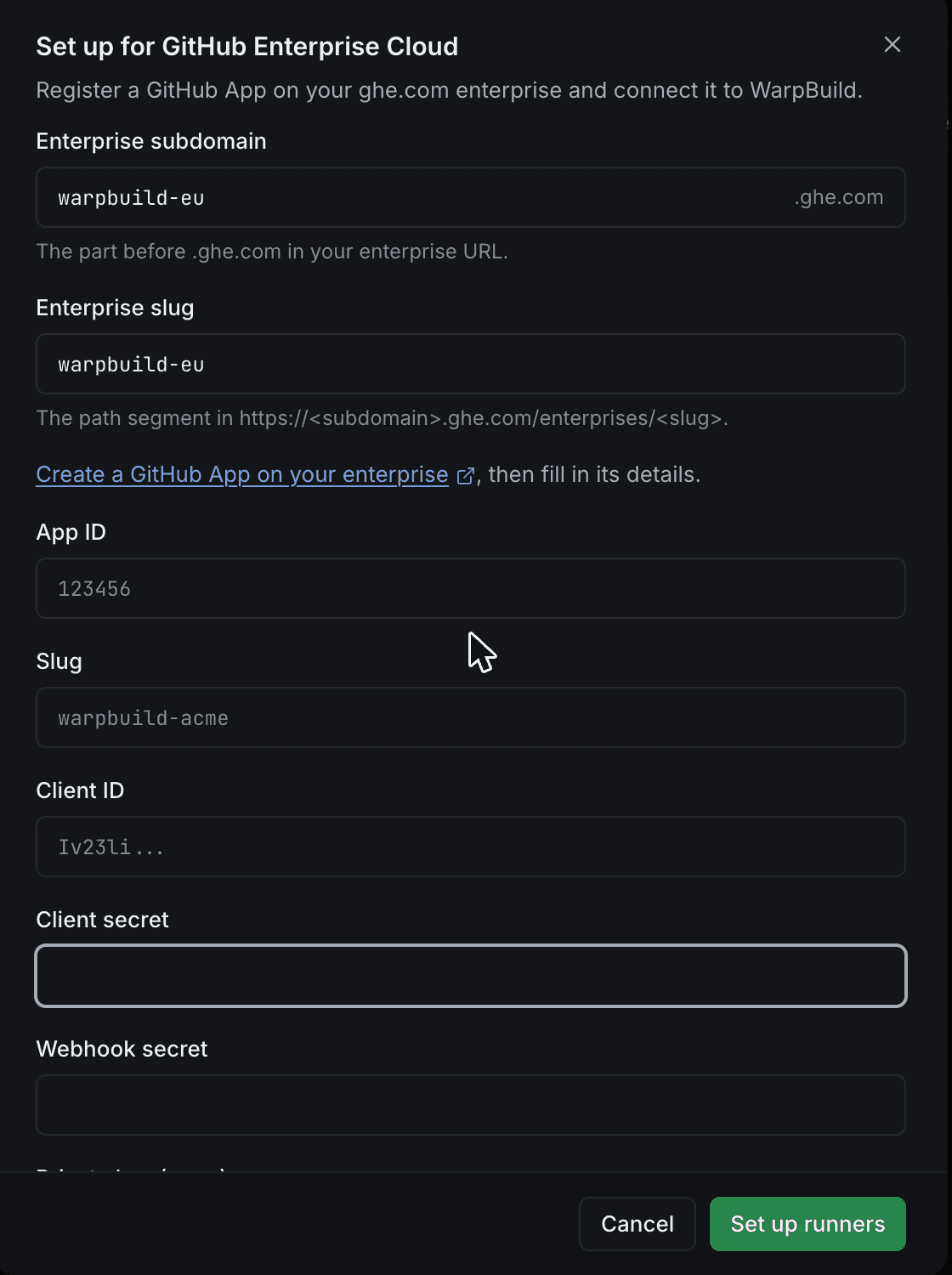
Fill in the Enterprise slug. The Host fills in as <slug>.ghe.com; change it to your instance's domain on GitHub Enterprise Server. WarpBuild looks up your enterprise. If an App is already registered for it, the dialog says so and you can skip to the install step. Otherwise the credential fields appear.
Register the App on GitHub
Click Create a GitHub App on your enterprise. GitHub opens the App registration page for your enterprise with the name, webhook URL, callback URL, permissions and events prefilled. Set a Webhook secret of your choice, then click Create GitHub App.
Do not change the prefilled permissions or events, now or later. Doing so can lead to unexpected failures on job runs.
On the App's settings page that follows, click Generate a new client secret and Generate a private key. GitHub downloads the private key as a .pem file.
Copy the credentials into WarpBuild
Back in the WarpBuild dialog, fill in:
| Field | Where to find it on GitHub |
|---|---|
| App ID | Top of the App settings page |
| Slug | Last part of the App settings URL, for example warpbuild |
| Client ID | App settings page, starts with Iv |
| Client secret | The secret you generated |
| Webhook secret | The secret you entered when registering the App |
| Private key (.pem) | The downloaded .pem file |
Click Set up runners. WarpBuild checks the credentials against your enterprise and sends you to the App's install page.
Install the App on an organization
Pick the organization, choose the repositories WarpBuild can run jobs for and confirm. You land back in WarpBuild with the organization marked Installed.
Connecting more organizations
The App is registered once per enterprise. To connect another organization, click Set up for GitHub Enterprise again. The dialog opens with your enterprise already filled in, finds the existing App and takes you straight to the install page, where you pick the next organization.
Using runners
Point your workflow's runs-on at a WarpBuild Runner ID. See Cloud Runners for the available labels. Workflow runs, jobs and webhooks all stay on your enterprise; WarpBuild talks to its API (api.<subdomain>.ghe.com on ghe.com, <host>/api/v3 on GitHub Enterprise Server).
jobs:
  build:
    runs-on: warp-ubuntu-latest-x64-4x
    steps:
      - uses: actions/checkout@v4
      - run: make build
What is different from github.com
| Area | On your enterprise |
|---|---|
| Login to WarpBuild | Google or SSO. GitHub login uses github.com accounts. |
| Public repositories | Enterprise Managed Users (all of ghe.com) have no public repositories, so the public repositories setting does not apply there. |
| Actions from github.com | Must be allowed in enterprise policies. Runners also need outbound access to github.com for action downloads and tool caches. |
| GitHub Marketplace | Not available. Use WarpBuild actions by their repository name, for example WarpBuilds/cache@v1. |
| Container registry | containers.<subdomain>.ghe.com on ghe.com, your instance's registry on GitHub Enterprise Server, instead of ghcr.io. |
| OIDC tokens | Issued by https://token.actions.<subdomain>.ghe.com on ghe.com, or https://<host>/_services/token on GitHub Enterprise Server. |
| Insights and Claude agents | Not available for enterprise organizations yet. |
Rotating credentials
To rotate the client secret, webhook secret or private key, open the App on GitHub at https://<host>/enterprises/<slug>/settings/apps/<app-slug> and generate new values. Then open Edit GitHub Enterprise app from the organization row under Settings → GitHub and paste them in. Fields left blank keep their current value.
Control plane egress IPs
The WarpBuild control plane makes outbound requests to GitHub (for runner registration, lifecycle management, and API calls) from the following static IP addresses:
3.13.16.127
3.141.157.169
3.151.226.250
Allow these on a GitHub Enterprise Server instance behind a firewall, and add them to any GitHub IP allow list your enterprise uses, so WarpBuild can communicate with GitHub on your behalf.
Troubleshooting
- "Couldn't look up the enterprise. Check the host and enterprise slug." The host must be reachable from WarpBuild's egress IPs and the slug must match the path in
https://<host>/enterprises/<slug>. - GitHub shows 404 on the App registration page. You are not an owner of that enterprise, or the slug is wrong.
- "Set up runners" fails. The App ID, slug or client ID do not match the App, the private key is not the one GitHub downloaded, or the App's permissions were edited. Compare with the App settings page and try again.
- Jobs stay queued. Check that the workflow uses a WarpBuild label and that the repository is in the App's repository access list on GitHub.
- Webhook deliveries not arriving. Open the App on GitHub → Advanced → Recent Deliveries. If deliveries fail, the webhook secret on WarpBuild does not match the one on the App. Re-enter it via Edit GitHub Enterprise app.
For anything else, email [email protected].
Last updated on